
Sunet Scribe
Sunet Scribe is the service used at JU for transcribing research data and for subtitling videos in JU play. The service is only available for staff.
For both services, we are charged per minute texted. As of 1/1 2027, this cost will be distributed among the companies, but right now it is centralized so that everyone has an opportunity to caption old material.
Captioning of video
To subtitle a video in JU play, follow the instructions on the JU play page.
Transcription
When it comes to the part for transcribing, for example, research data, it is completely new and work is underway to configure the service, as well as to develop short instructions.
Log in for transcription
NOTE! In order for the IT department to activate your account in the service, you first need to make a login. You will not be able to enter the system, but your account will be created in the background and the IT department can then activate it.
- Go to the page scribe.sunet.se External link, opens in new window. and click on the button "LOGIN WITH SSO". Log in with your JU account.
- Post a case to IT Helpdesk so that we can activate your account
- You will receive a reply via the case when your account is activated and you can then log in to scribe.sunet.se External link, opens in new window. as above.
Once you have logged in, you will be required to set a personal passphrase. You will then need to enter this each time you log in to the service.
If you lose your personal passphrase, you can generate a new one yourself, but you will not be able to access and download previously transcribed material that was made with the old passphrase as protection. This material is completely inaccessible without the correct passphrase.
Notifications via email - settings
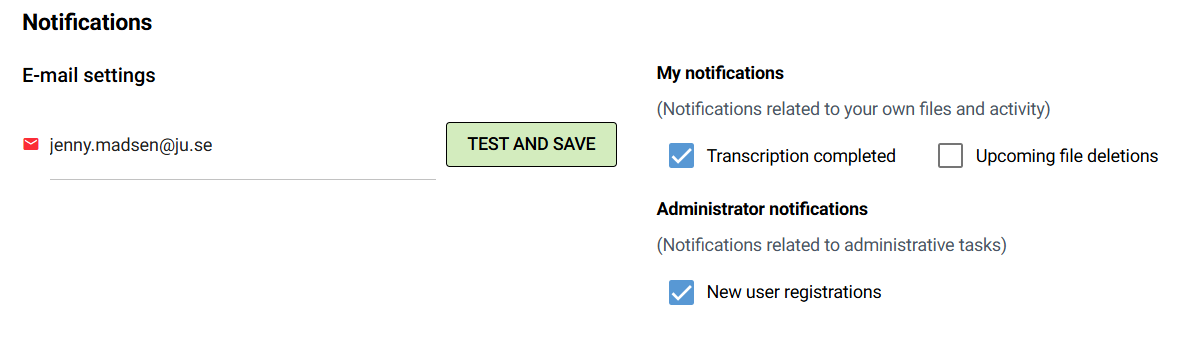
If you want to receive email notifications when your transcription/subtitling is complete or be reminded when your files are approaching their deletion date, you must go to "User settings" within the service, fill in your e-mail address and check the boxes to activate these.
Upload file for transcription
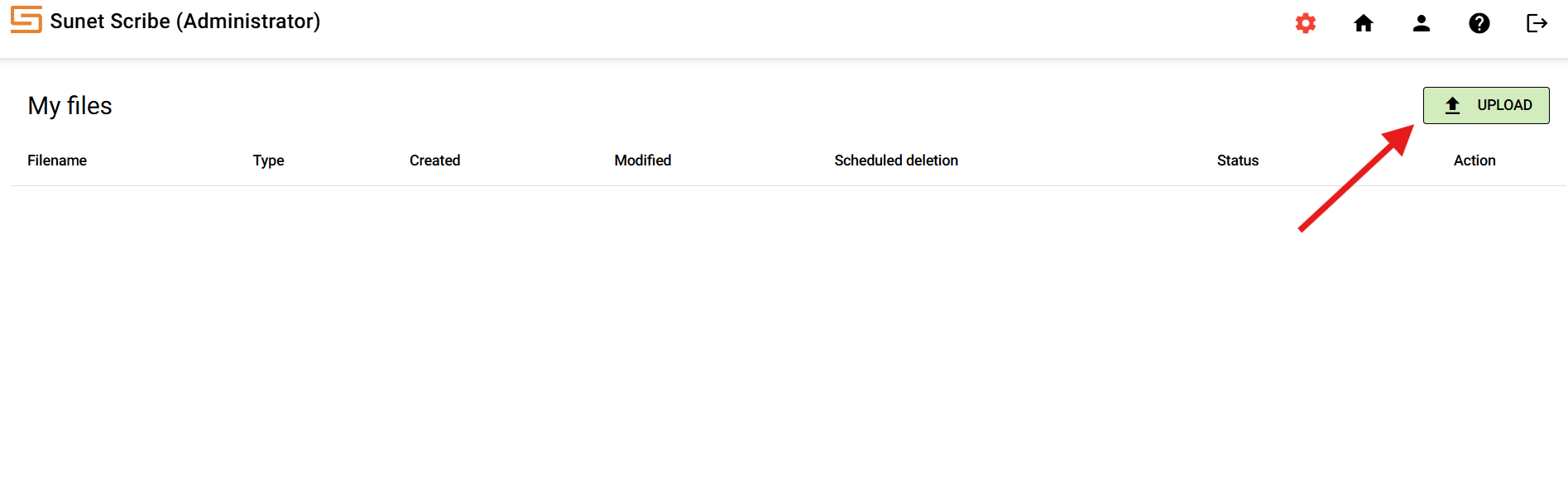
After logging in to the service, click on the "UPLOAD" button.
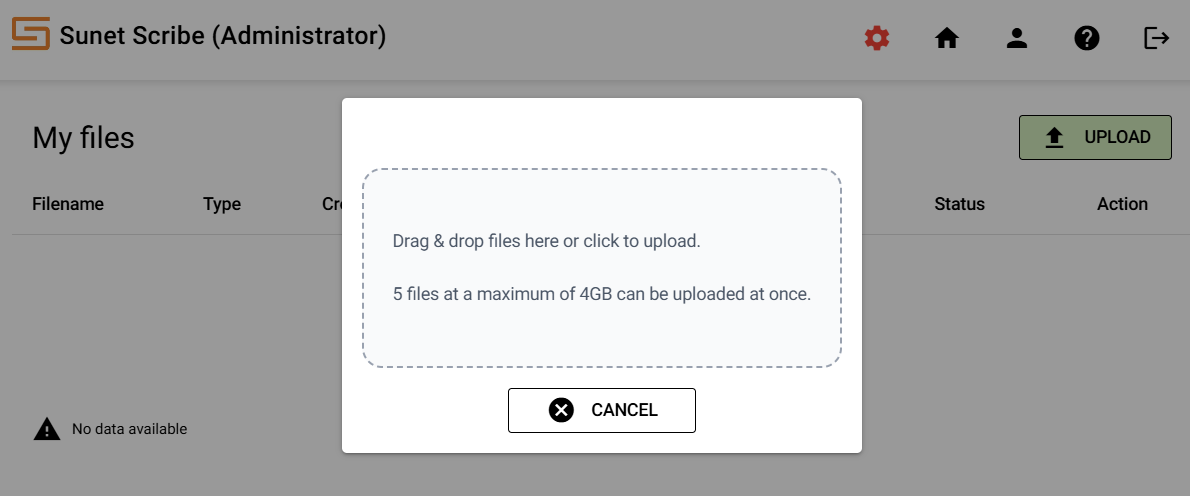
Next, drag over your file and drop into the upload area.
Transcribe
When your file has finished uploading, press the "TRANSCRIBE" button.

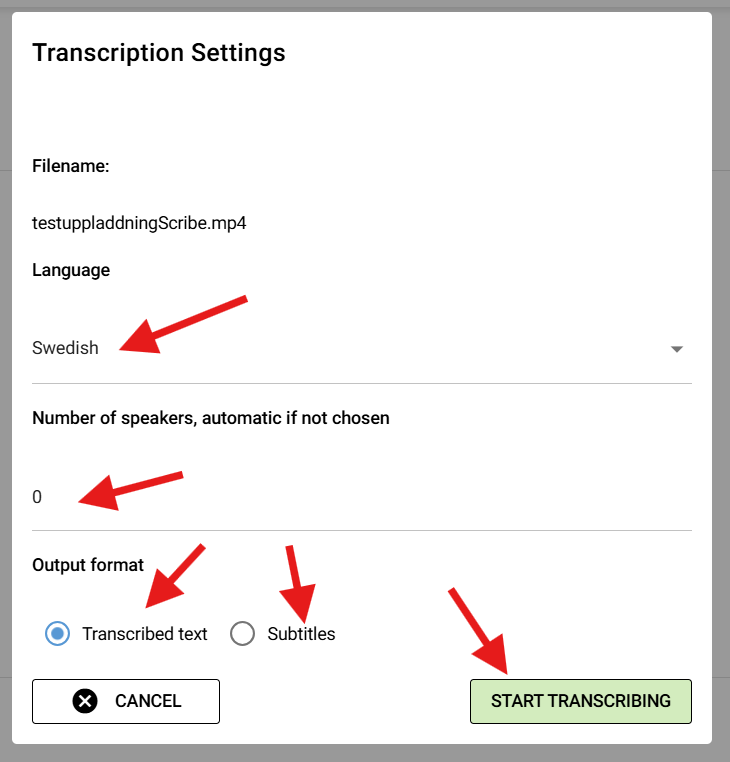
In the window that opens, you need to specify the language spoken in your file. Initially, there is support for Swedish, our other Nordic neighboring languages as well as English, German, French, Spanish, Italian, Russian and Ukrainian. More languages may be added over time. If you know how many different speakers there are in your audio, enter that number, but otherwise leave it at zero and Scribe will try to figure it out on its own. You also need to choose whether you want a transcript or a subtitle. When you are done, press "START TRANSCRIBING".
The status of your file will now change first from uploaded to transcribing and then when it is ready to completed. It is important to know that your file will only be saved in Scribe for seven days from the time you uploaded it and then it will be deleted automatically. You can see the date when deletion will take place under "Scheduled deletion". When your file is finished transcribing, press "EDIT" to see the result.

Editing and exporting
What you see on the editing page differs slightly depending on whether you chose transcription or subtitling.
Edit and export subtitles
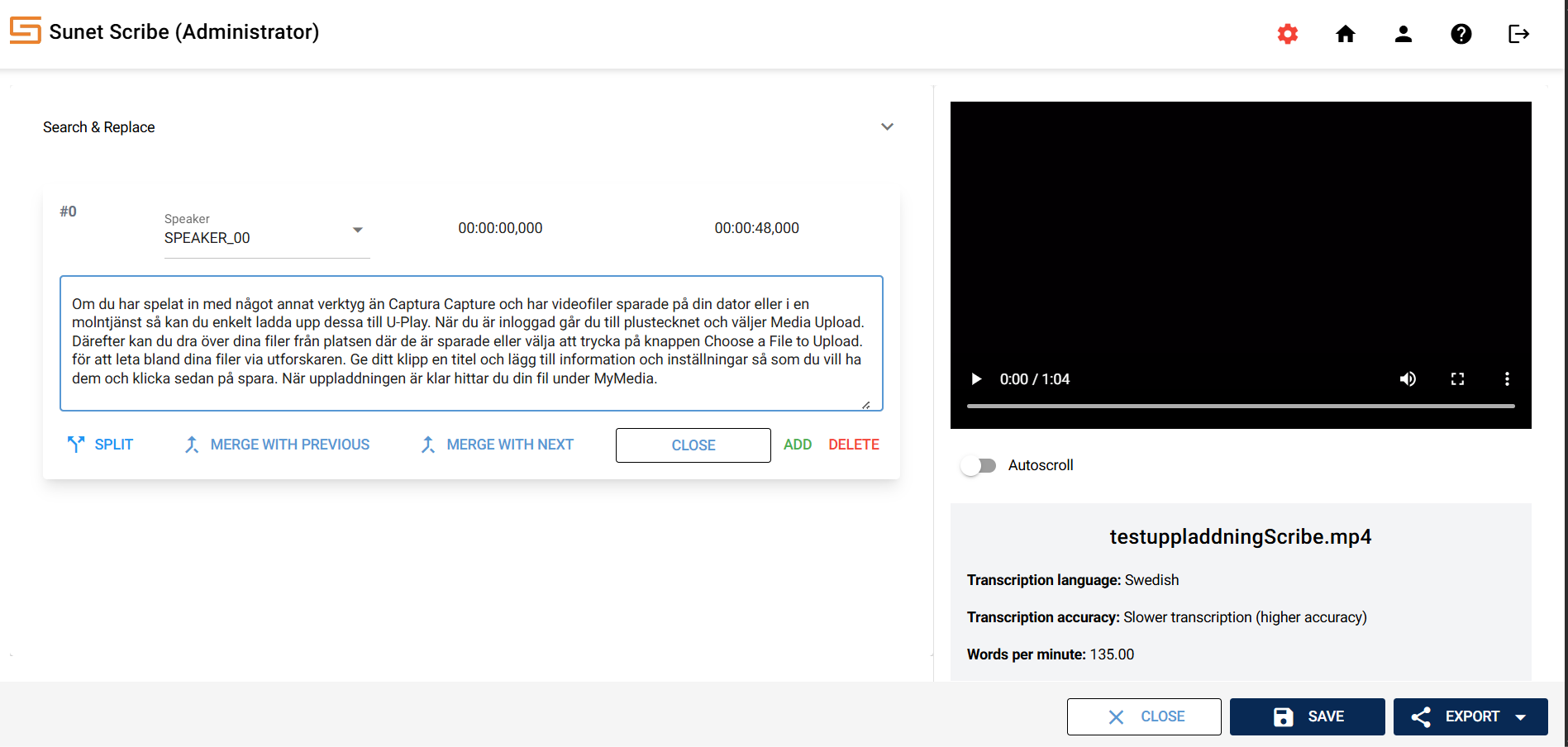
If you have selected subtitles, you will see the text divided into time intervals.
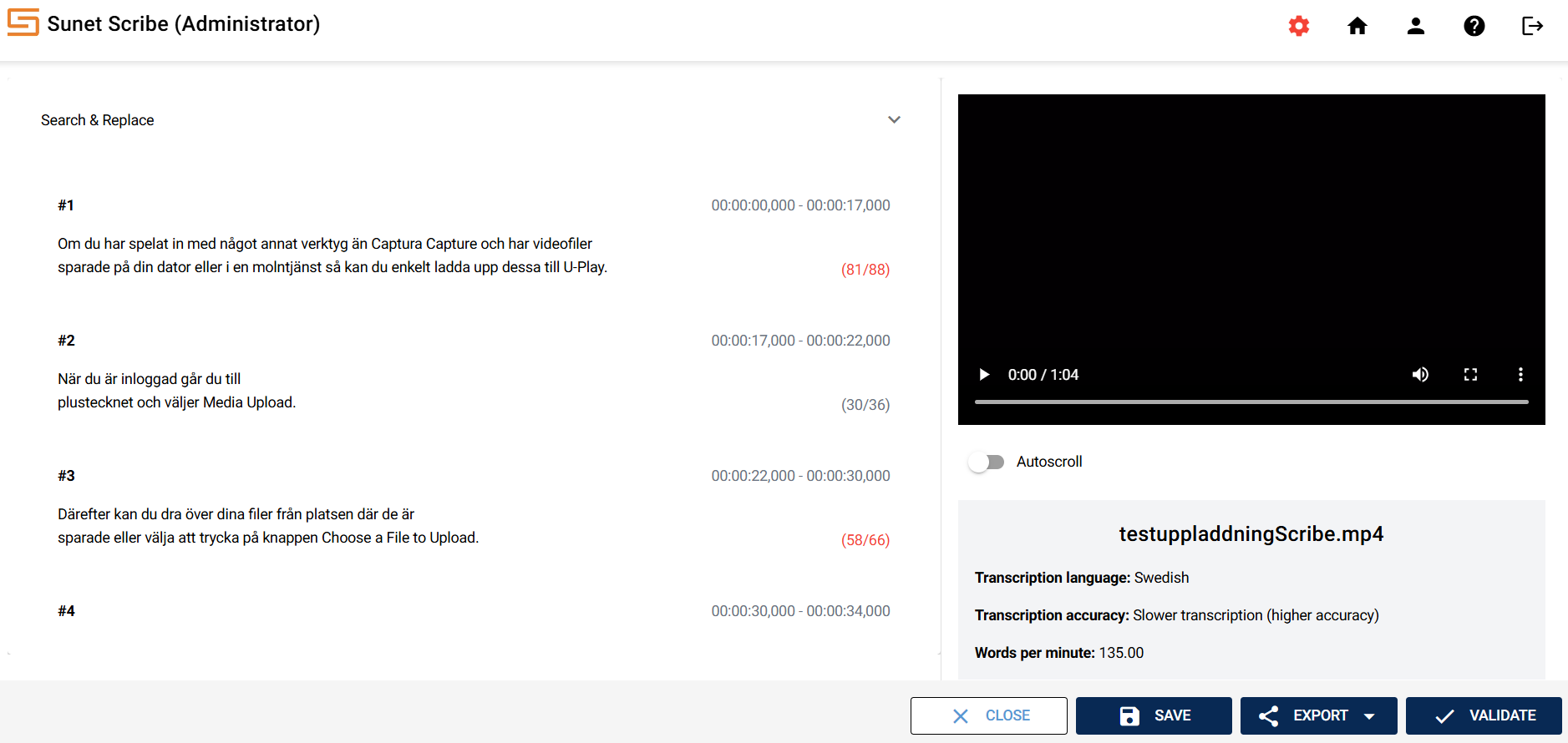
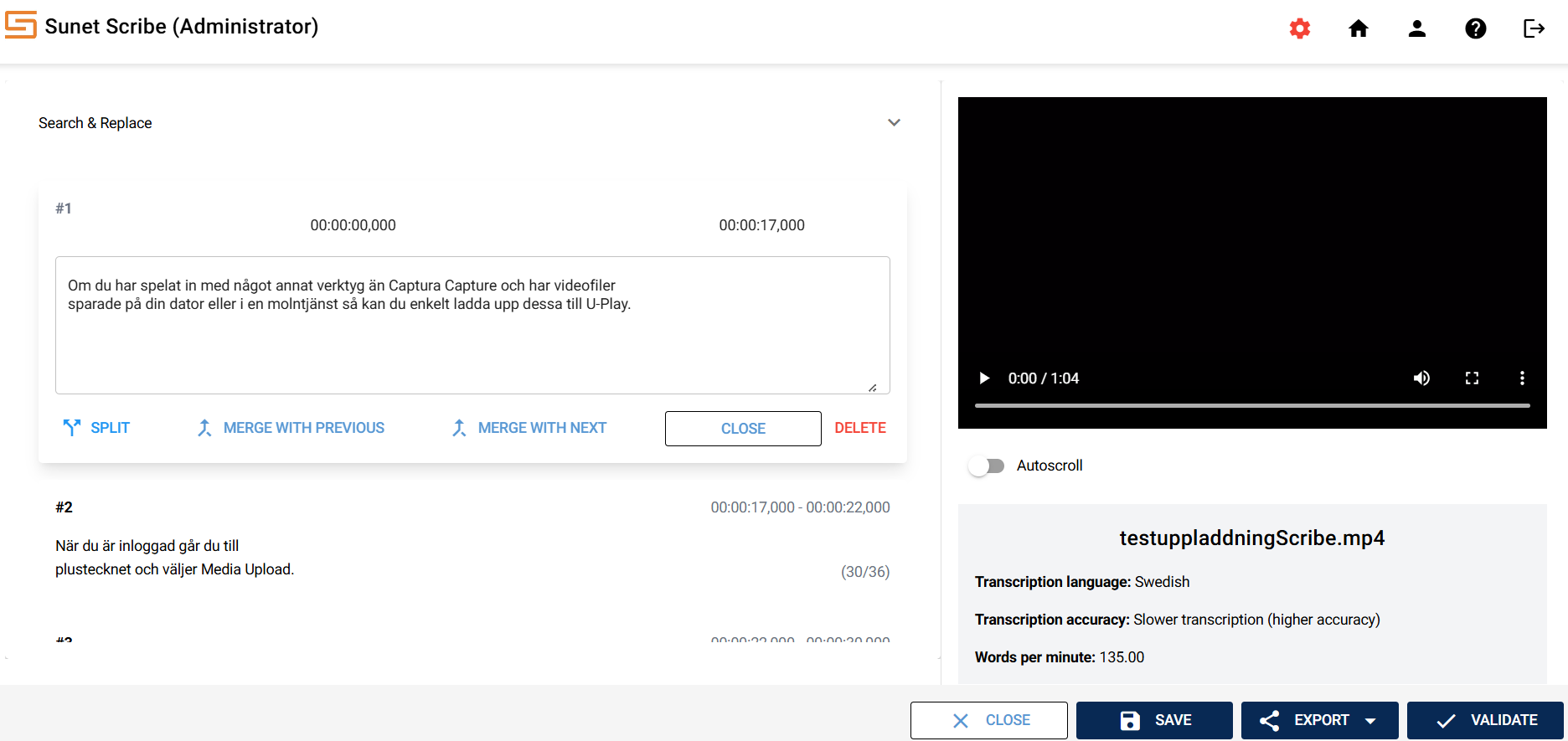
You can click in the text to start editing it. In the menu that pops up, you have buttons to split the subtitle piece or merge it with the previous or next block of text.
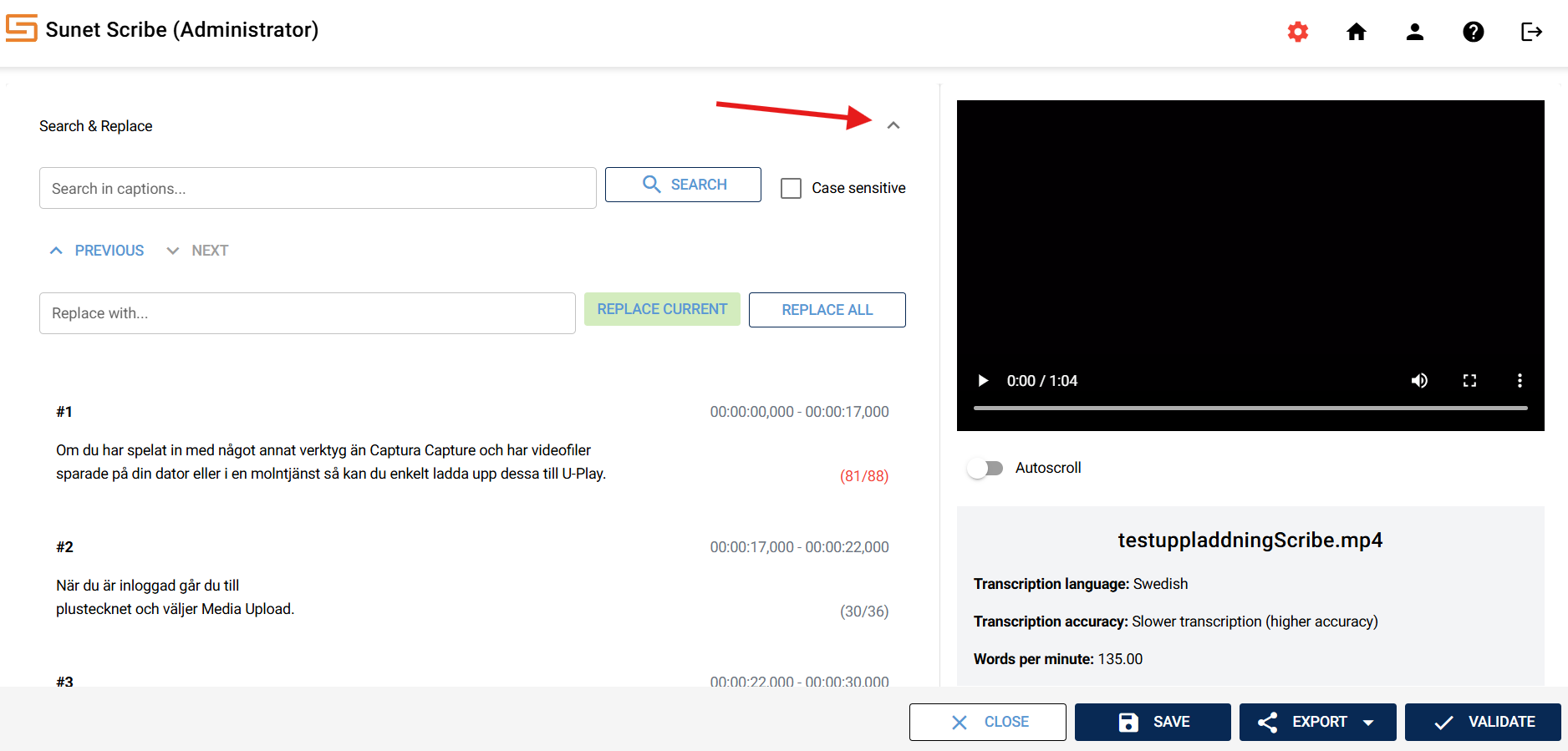
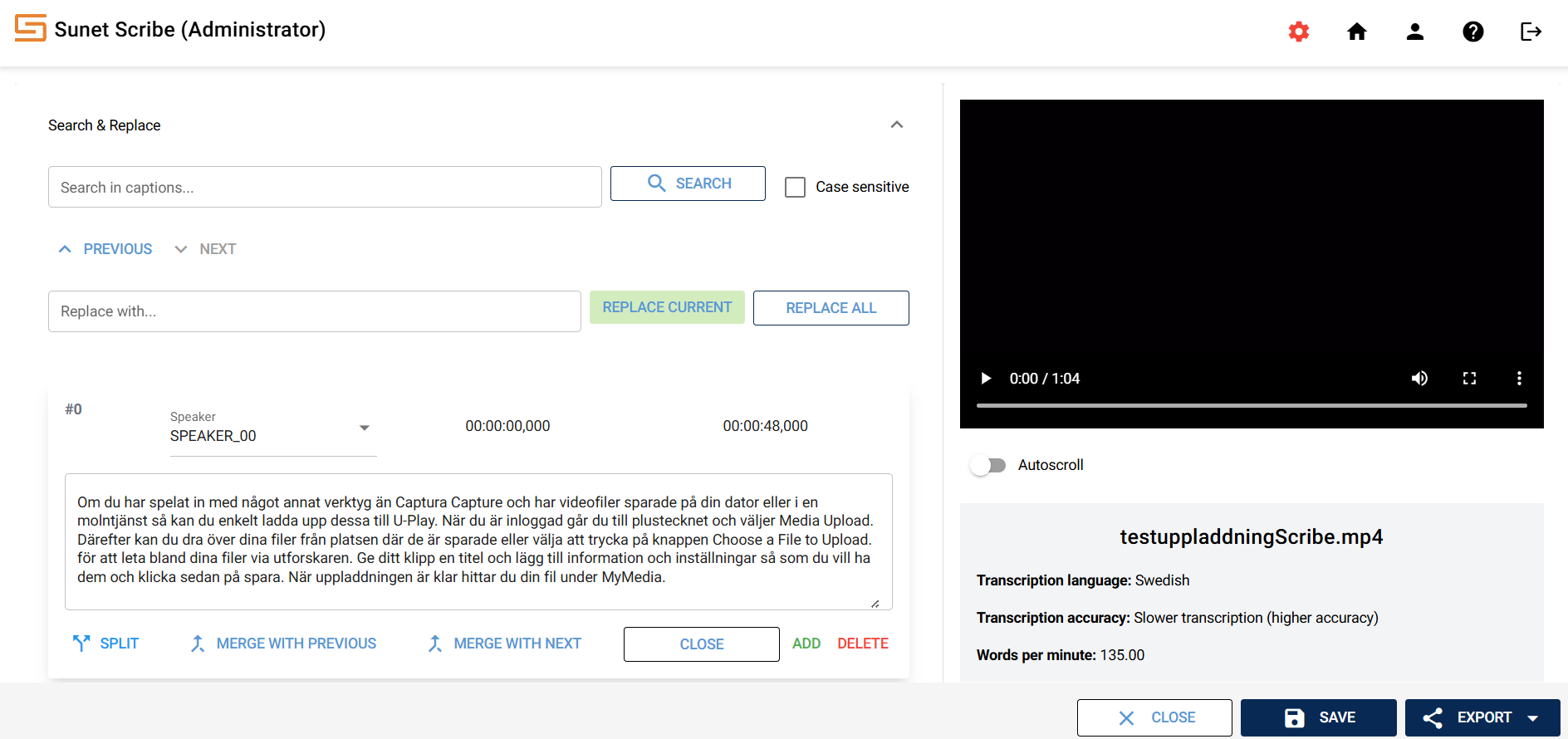
Clicking on the tab for "Search & Replace" allows you to search for words and replace them.
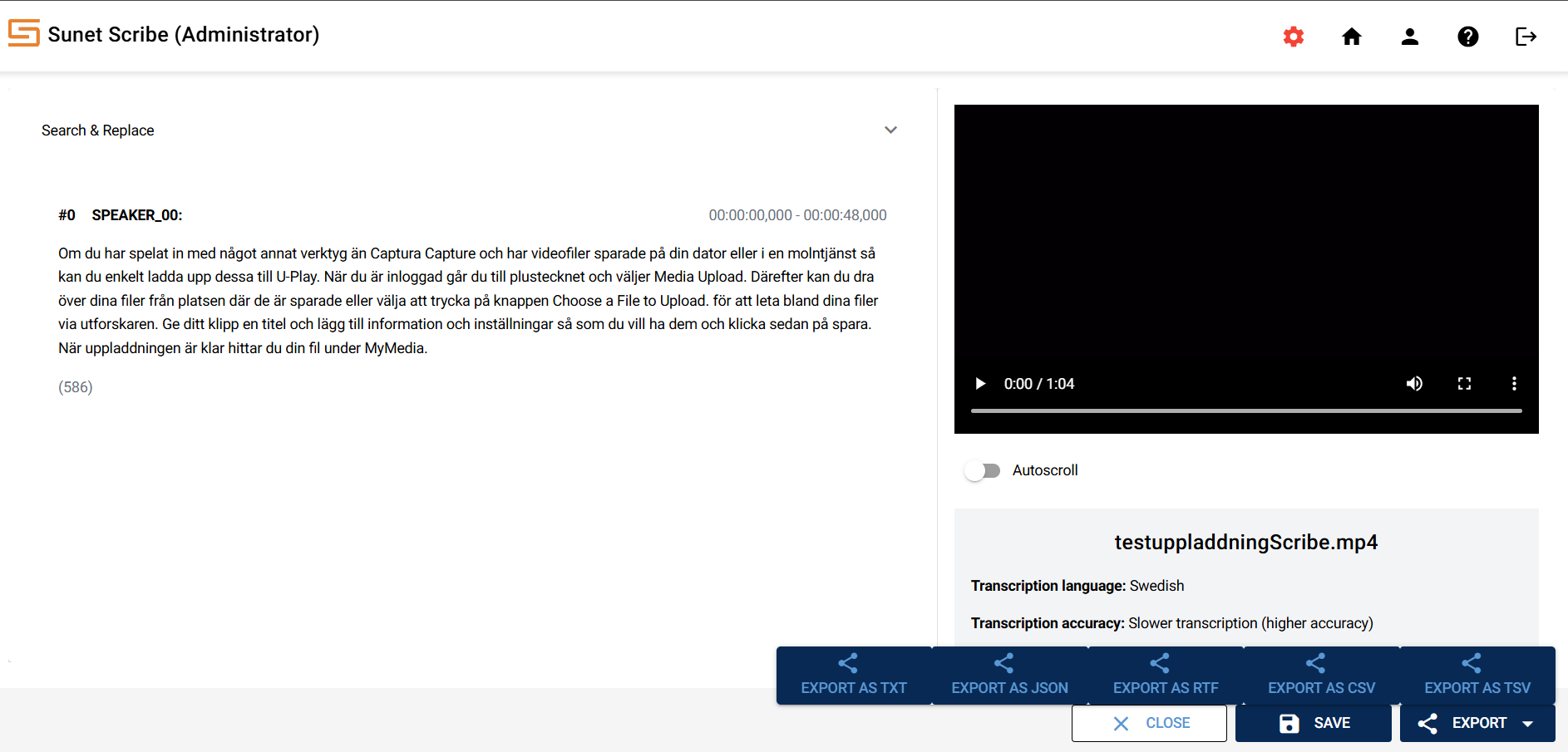
When you have finished your editing, it is time to first save (just in case, Scribe autosaves when closing edit boxes, but it is easy to forget any box open) and then export your file in the format you want and to a location suitable for the content.

Edit and export transcription
If you have made a transcription, you will see the text as a whole, without dividing it into different times.
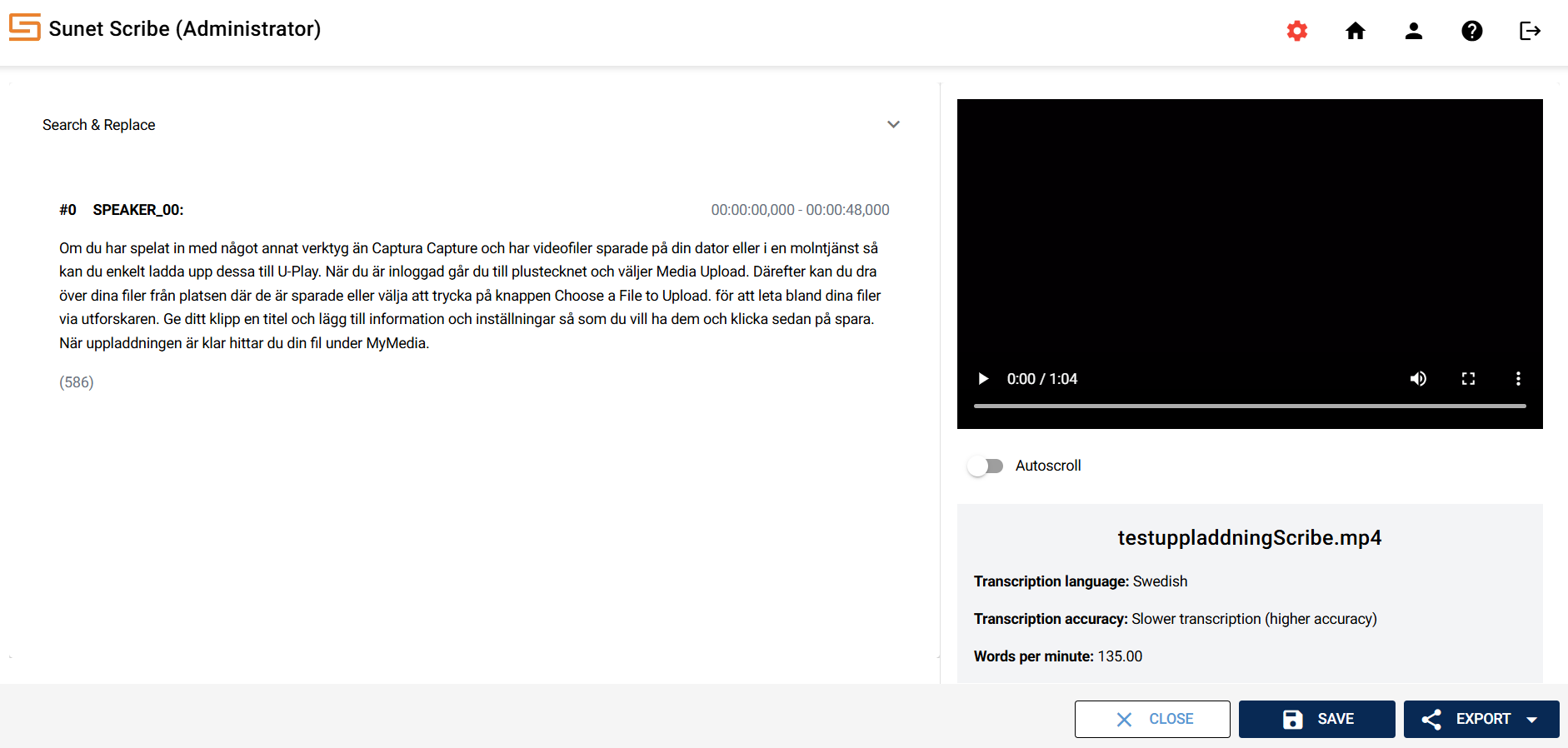
Click on your text to start editing it immediately. You will also see a menu with extra buttons to manage your text.
Clicking on the tab for "Search & Replace" allows you to search for words and replace them.
When you have finished your editing, it is time to first save (just to be sure, Scribe autosaves when closing edit boxes, but it is easy to forget any box open) and then export your file in the format you want and to a location suitable for the content.
About the service
Sunet Scribe is a speech-to-text service (subtitling and transcription of audio and video files) developed by Sunet for the research and education sector. The service is based on open technologies, including the KB Whisper language model, which has been fine-tuned for Swedish by the National Library of Sweden. Transcription and processing is done within Sunet's own data center in Sweden, without external subcontractors.
The service is built to handle sensitive personal data and information worthy of protection. The content is processed in isolated container environments and is automatically deleted seven days after upload. You can see the date of deletion of your file under "Status" inside the service.
Please note that the service is not intended for material covered by security protection legislation.
Read more on Sunet's pages about the service External link, opens in new window.


